Known Ground works best when permissions match the way you want to travel. Do this once before a busy travel day, then adjust later if you want more or less coverage.
Location is what lets Known Ground show where you are and preserve routes while you travel.
Open Known Ground and tap Open the Map if you are on the first screen.
When iOS asks for location, allow the access you are comfortable using.
If you want Trip Coverage to keep working while the app is closed or the phone is locked, use the stronger location access the app requests for background coverage.
Keep Precise Location on when you care about accurate walking routes or place memories.
You can change this later in iOS Settings under Known Ground.
iCloud is optional. It is useful when you want backup, migration, or the same private archive on your Apple devices.
On the first screen, decide whether to turn on Sync with iCloud.
Leave it off if you only want the archive on this device for now.
Turn it on if you want Known Ground data available through your private Apple iCloud account.
Later, open My Ground and then Settings to check iCloud readiness.
Known Ground can keep working locally even when iCloud is unavailable or catching up.
Before you leave, the useful step is allowing photo library access so Known Ground is ready when you want to add trip photos later.
When Known Ground asks for Photos access, choose the level of access you are comfortable with.
Allow access before a busy travel day if you plan to attach or import photos during the trip.
Choose limited access if you only want Known Ground to see selected photos.
Import photos later, after you have taken the pictures you actually want to remember.
Photos access is permission setup. Import Photos belongs later, when you have trip photos worth adding.
2. During the trip
Capture the ground you are on, as you go.
Use Trip Coverage for a full travel day or vacation. Use Walk On when you want a clear route for one focused walk.
Trip Coverage is the mode to use for a travel day, a vacation day, or a long period where you want Known Ground quietly covering the ground you pass through.
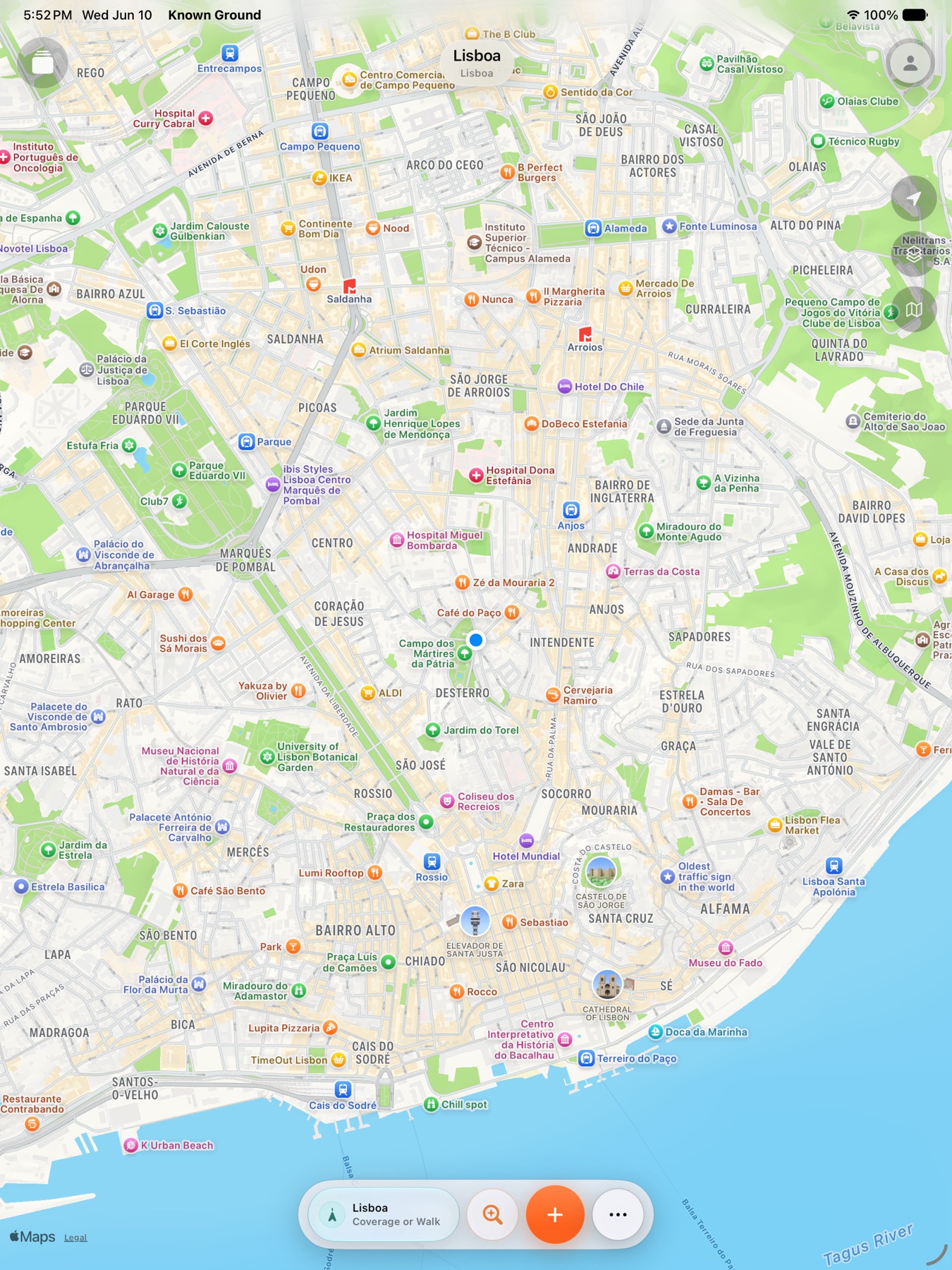
Open the map and tap the tracking control in the bottom dock.
Choose Start Trip Coverage.
Leave it on while you move through the day: walking, wandering, commuting, or returning to places.
Stop it when the travel day is over or when you no longer want background coverage.
Trip Coverage is not a workout tracker. Think of it as a quiet travel trace for the trip.
Walk On is for one focused walk where route detail matters more than battery life.
Start Walk On from iPhone or Apple Watch when you begin the walk.
Use it for a neighborhood walk, a route you want to remember clearly, or a short exploration segment.
Pause or finish it when the walk is over.
If you started Walk On during Trip Coverage, Trip Coverage resumes when the walk ends.
Use Trip Coverage for the whole day; use Walk On for the one walk you especially care about.
Walk On00:45:12
2.34 mi ground covered
For LaterVisited
Place memorySaved for laterRemembered visitAttached note
3. Remember places
Capture the spots that matter.
Places can be future ideas, remembered visits, or quick notes tied to where they happened.
Save for LaterUse this for a restaurant, lookout, shop, beach, museum, or neighborhood you might want to find again. It creates a For Later place without saying you have already been there.
Mark VisitedUse this when you want the place to become part of your remembered map. It adds a visit, then lets you add memory details if you want.
Add NoteUse this for the small detail you will want later: what you ordered, who you were with, why the place mattered, or what to try next time.
Search PlacesUse this when you are looking for a specific saved place, visited place, or place you remember by name. Open More, then Search Places.
A simple travel habitSave places before or during the day. Mark visited places after you actually go. Add notes when a detail would be hard to remember from the map alone. Use Search Places when you want the place itself, not the whole memory around it.
4. Photos, notes, and search
Your memories, right where they happened.
Known Ground is most useful after a day or two of walking, saving, writing, and taking photos.
Import PhotosAfter a day of travel, import a small batch of trip photos. Photos with dates or locations can appear on the map and inside trips.Search MemoriesUse Search Memories when you are looking across notes, photos, trips, and remembered context. Use Search Places when you already know the place is what you need.
Miradouro saved for later
Time Out Market photo
Sunset note near Cais do Sodre
5. When something feels off
Quick checks and tools that help.
If routes, photos, search, or sync do not behave as expected, start with the calm checks below.
Location, Photos, Motion, Health, and iCloud each affect different parts of the app.
Open My Ground, then Settings.
Check the readiness rows for Location, Photos, iCloud, and Search & Spotlight.
If a row says something needs attention, open iOS Settings and adjust that permission.
Known Ground can keep working locally while iCloud catches up.
Confirm the device is signed into iCloud.
Confirm iCloud Drive is available.
Open Known Ground again and give the archive a moment to restore or sync.
If the app says iCloud is unavailable, keep using the local archive and check again later.
Use Export Diagnostics when a problem needs a useful report instead of a vague screenshot.
Open My Ground, then Settings.
Tap Export Diagnostics soon after the issue happens.
Share the report with a short note: what you were trying to do, what happened, and about what time it happened.
For route or battery issues, mention whether Trip Coverage or Walk On was active.
The report is designed to avoid private note bodies, photos, exact coordinates, addresses, and raw place names.
Diagnostics
Exports avoid private note text, photos, exact coordinates, and raw addresses.
 Trip-ready setup